



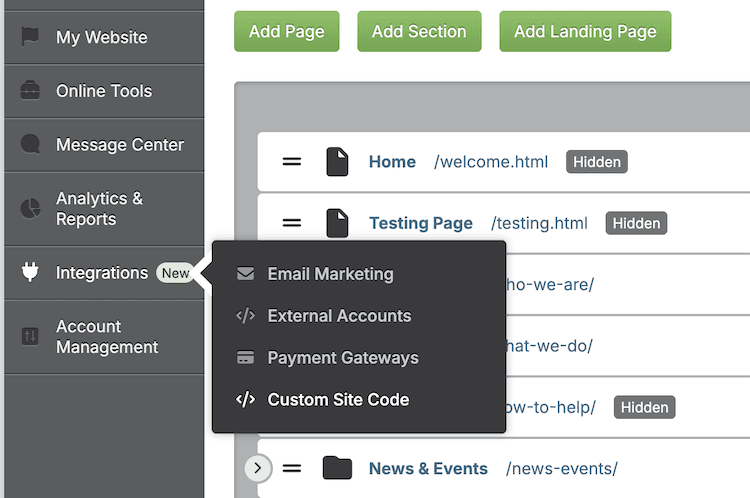
You asked, we delivered! With the new Custom Site Code feature in the Springboard, you now have the power to add your own Header, Footer or Inline CSS, HTML or JavaScript code! With just a few easy steps, you can update your own site with Custom Code, giving you the ability to fully customize your website to suit your organization's needs.
You'll find this new tool in the Integrations tab of your Springboard. Click Integrations, then Custom Site Code. Here you're able to view any code that Firespring has added to your website on your behalf. You can add new code by clicking the green Add Custom Site Code button.
You can choose to add Header or Footer code to your entire site, or to specific pages on your site. You can also add Inline code to your Custom Site Code list, which you can then easily add to your website pages with the Custom Code Content Type.
Custom Site Code opens up a world of possibilities, allowing you to customize your website more than ever before. To learn more about adding Custom Site Code to your website, check out this article.
Note: Custom code can affect your site's functionality. Be sure to use caution when adding code. The Custom Site Code feature is only available at some levels of service, and to Primary Administrators by default. If you are not seeing Custom Site Code in your Integrations tab, reach out to your website's Primary Administrator to upgrade your Springboard permissions. If you are a Primary Administrator, reach out to our Client Success Team at 877.447.8936 or support@firespring.com to re-evaluate your level of service.
